snippets








Snippets — Supercharge Snippets in VS Code and Cursor
Code snippets are valuable additions for anyone looking to save time during development. They simplify the process of entering repetitive code, such as loops, complex HTML structures, or reusable methods.
Visual Studio Code already provides robust support for snippets, including their appearance in IntelliSense, tab-completion, and a dedicated snippet picker (Insert Snippet in the Command Palette). This extension takes snippets to another level by introducing new features that enhance code snippet management.
Getting Started
Install Snippets by one of the following options:
- Clicking
Installon the banner above - Searching for
Snippetsfrom the Extensions side bar in VS Code and Cursor - Typing
ext install tahabasri.snippetsfrom the Command Palette in VS Code and Cursor
| Features | Settings | FAQ | Known Issues | Release Notes | Feedback | Credits |
Features
Boost your productivity with a set of powerful features that enhance snippet management:
- Create — Create Snippets easily with a few clicks.
- Open — Open Snippets quickly from anywhere in VS Code and Cursor.
- Search — Find your Snippet in 2 seconds or less.
- Manage — Organize your snippets freely, with no forced order, beyond editing and deleting.
- Customize — Personalize your Snippets to match your style.
- Sync — Various options for synchronizing your snippets across multiple devices and users.
- Boost — Supercharge your snippets to make them more developer-friendly.
- AI Integration — Seamlessly work with AI assistants in VS Code and Cursor.
Create
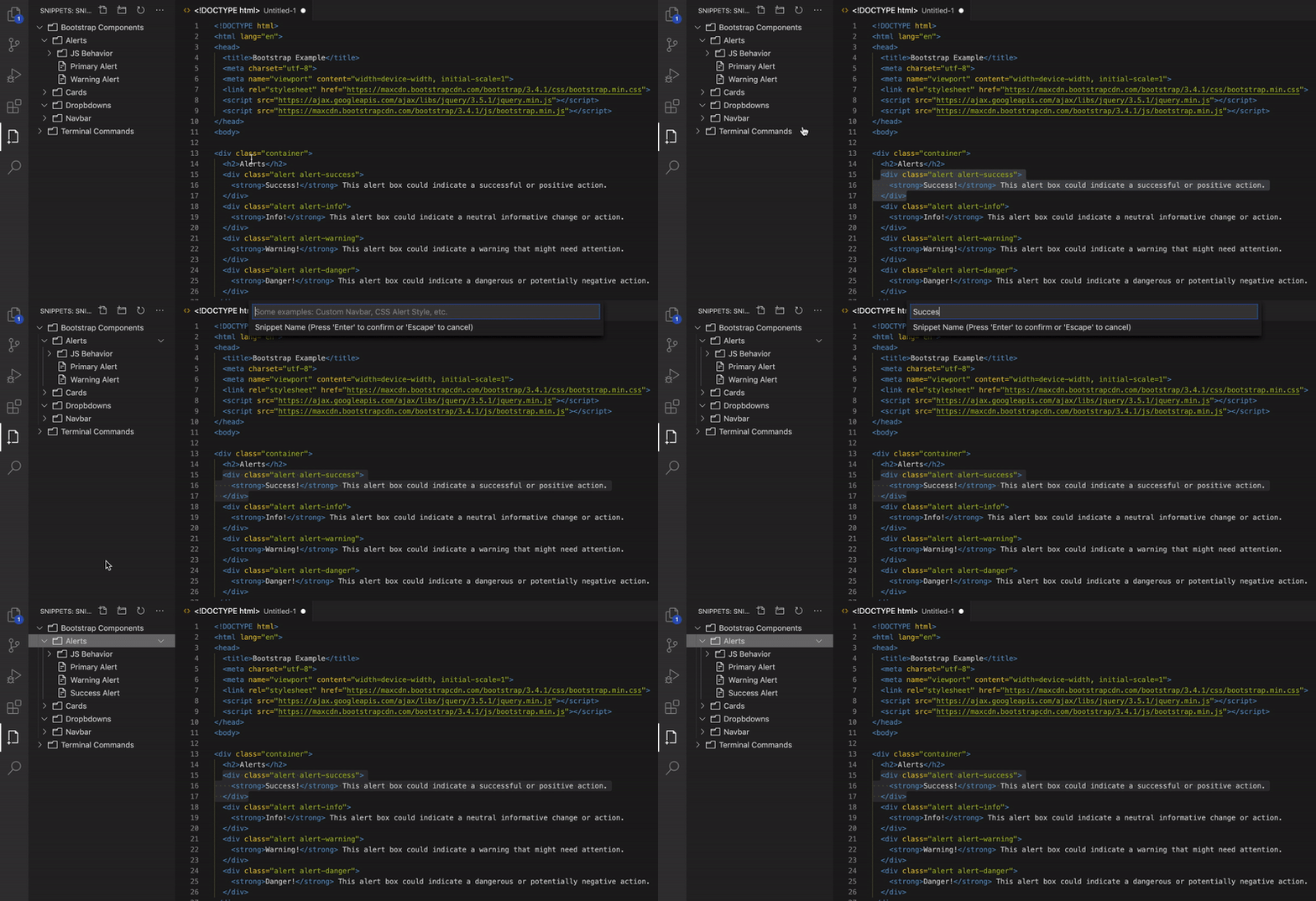
Create Snippet from open editor
Select code in any open editor and save it as a Snippet in a single action — the current selection becomes the Snippet value.
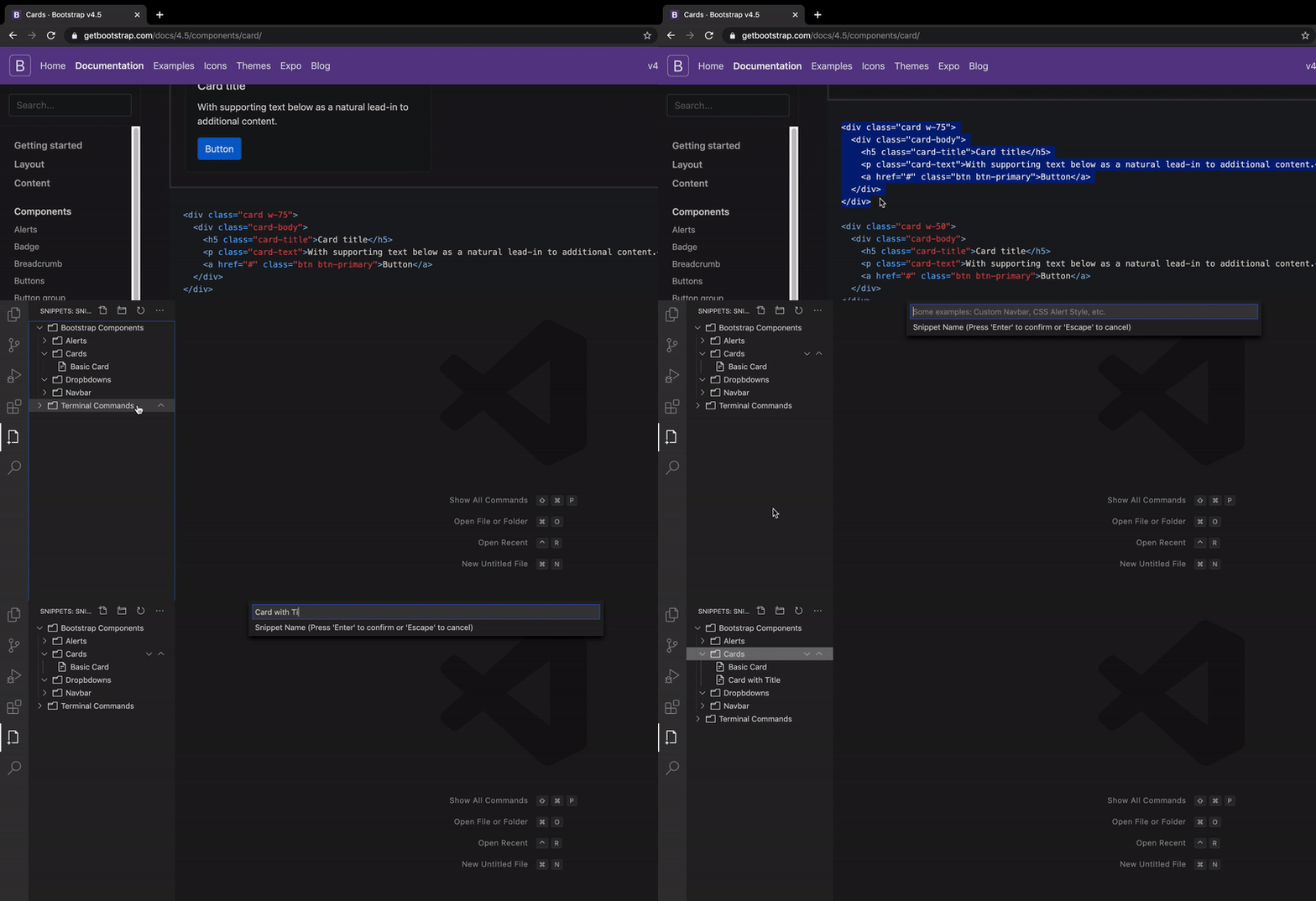
Create Snippet directly from the clipboard
Turn whatever you last copied into a Snippet without selecting anything in the editor, straight from your clipboard.
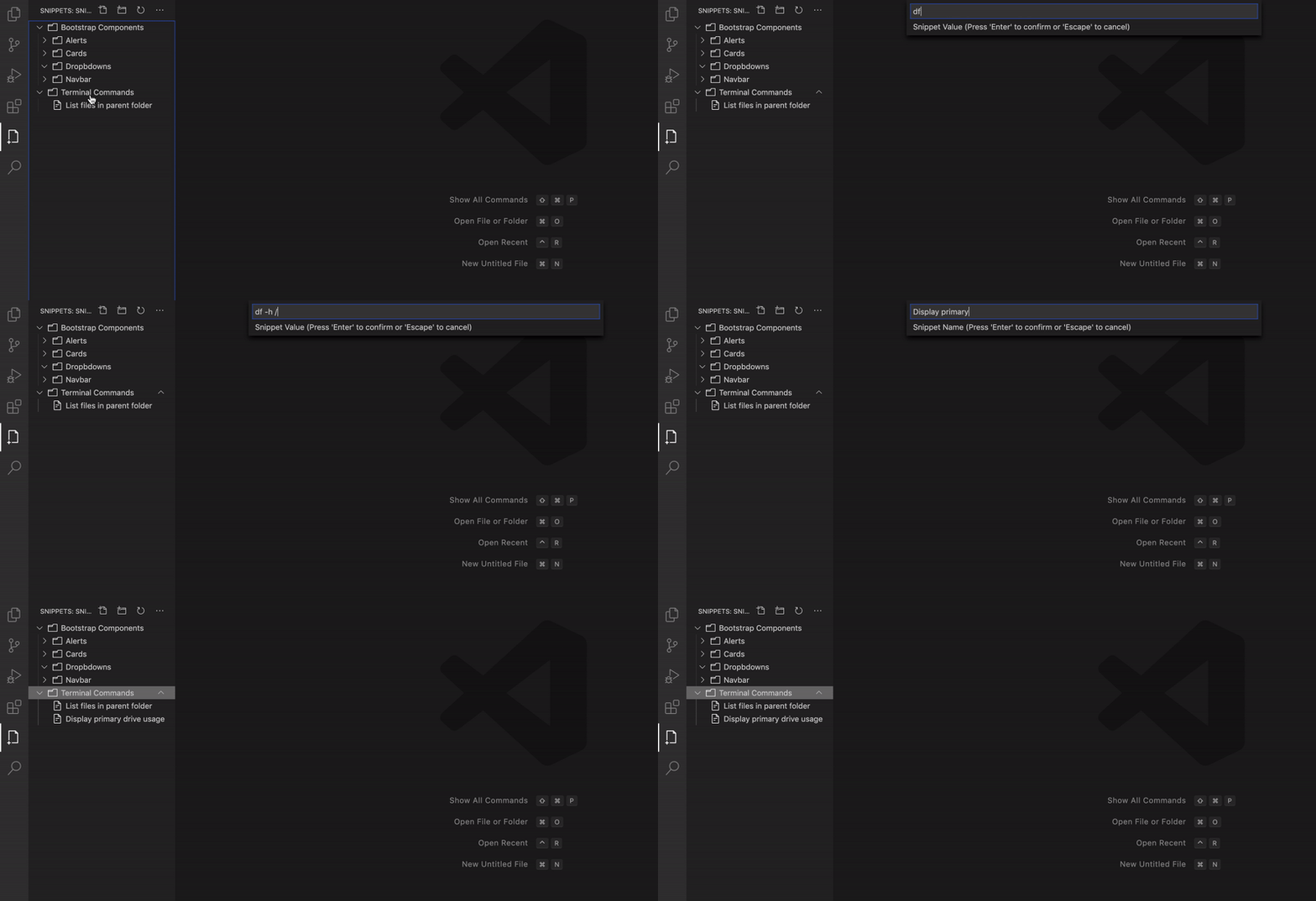
Create Snippet manually
Create an empty Snippet and type its content yourself — handy when the code isn’t already in your editor or clipboard.
Open
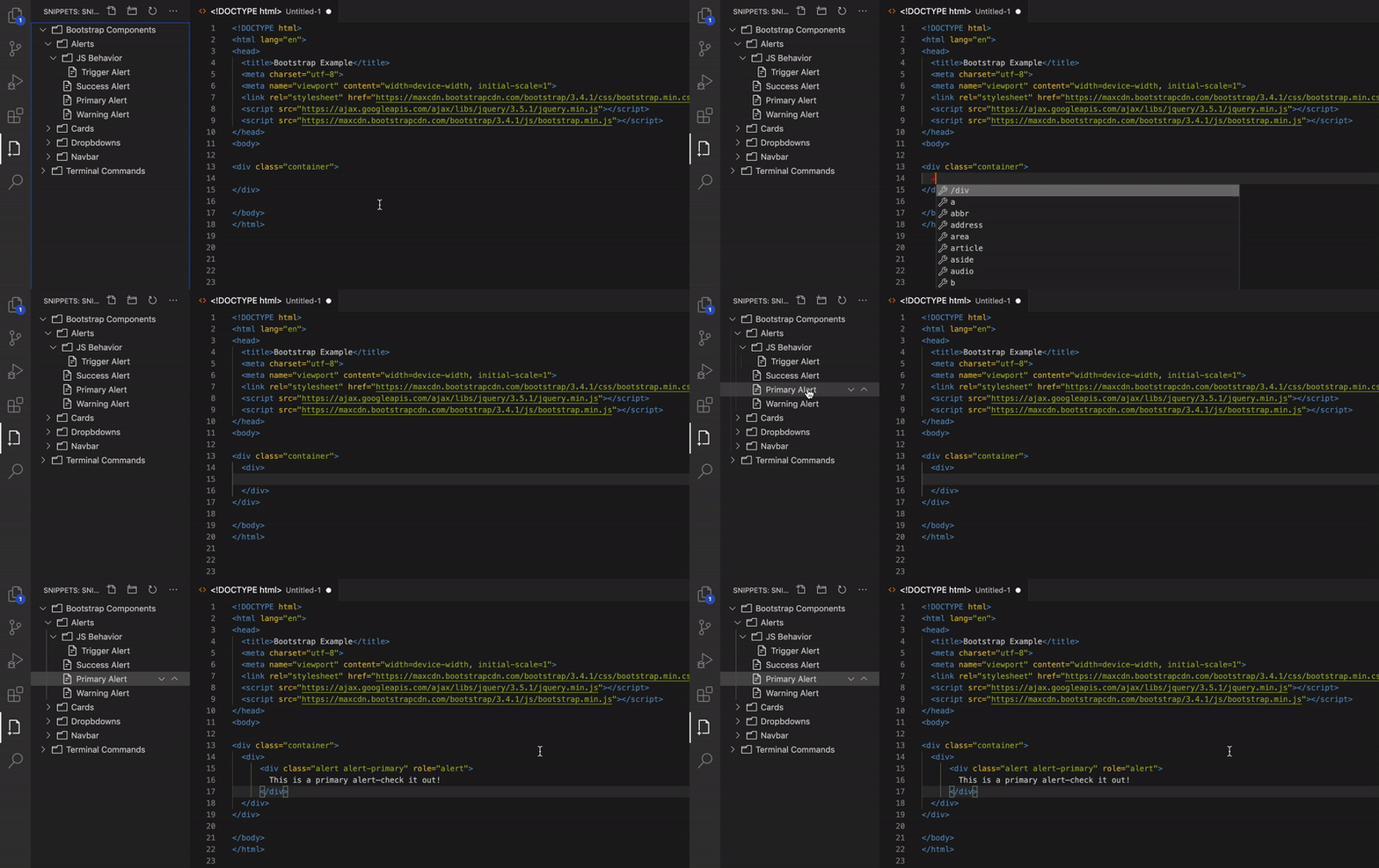
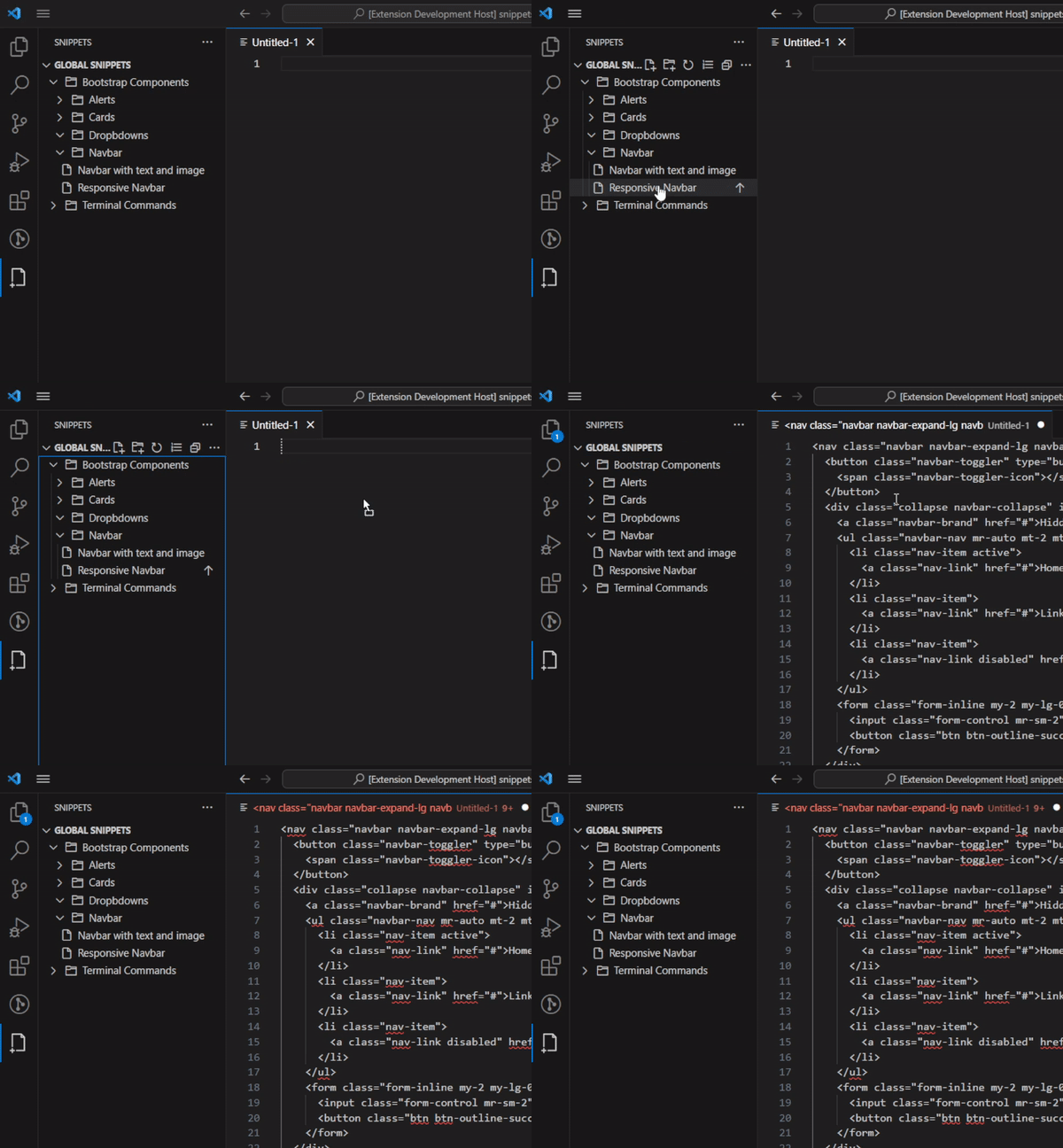
Open Snippet with a single click
Click a Snippet in the Snippets view to insert its content at the cursor in the active editor.
Drop Snippet directly into the editor
Drag a Snippet from the Snippets view and drop it exactly where you want it in the editor.
You may need to hold
Shiftkey while dragging to correctly drop the item in the editor.
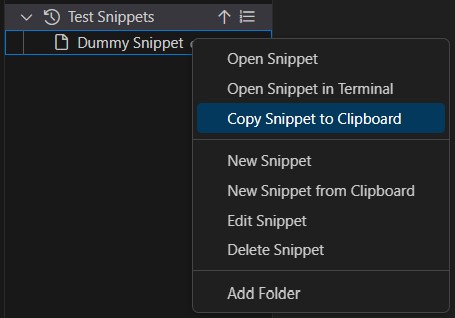
Copy Snippet to Clipboard
Copy a Snippet’s content to the clipboard to paste it wherever you need, inside or outside the editor.
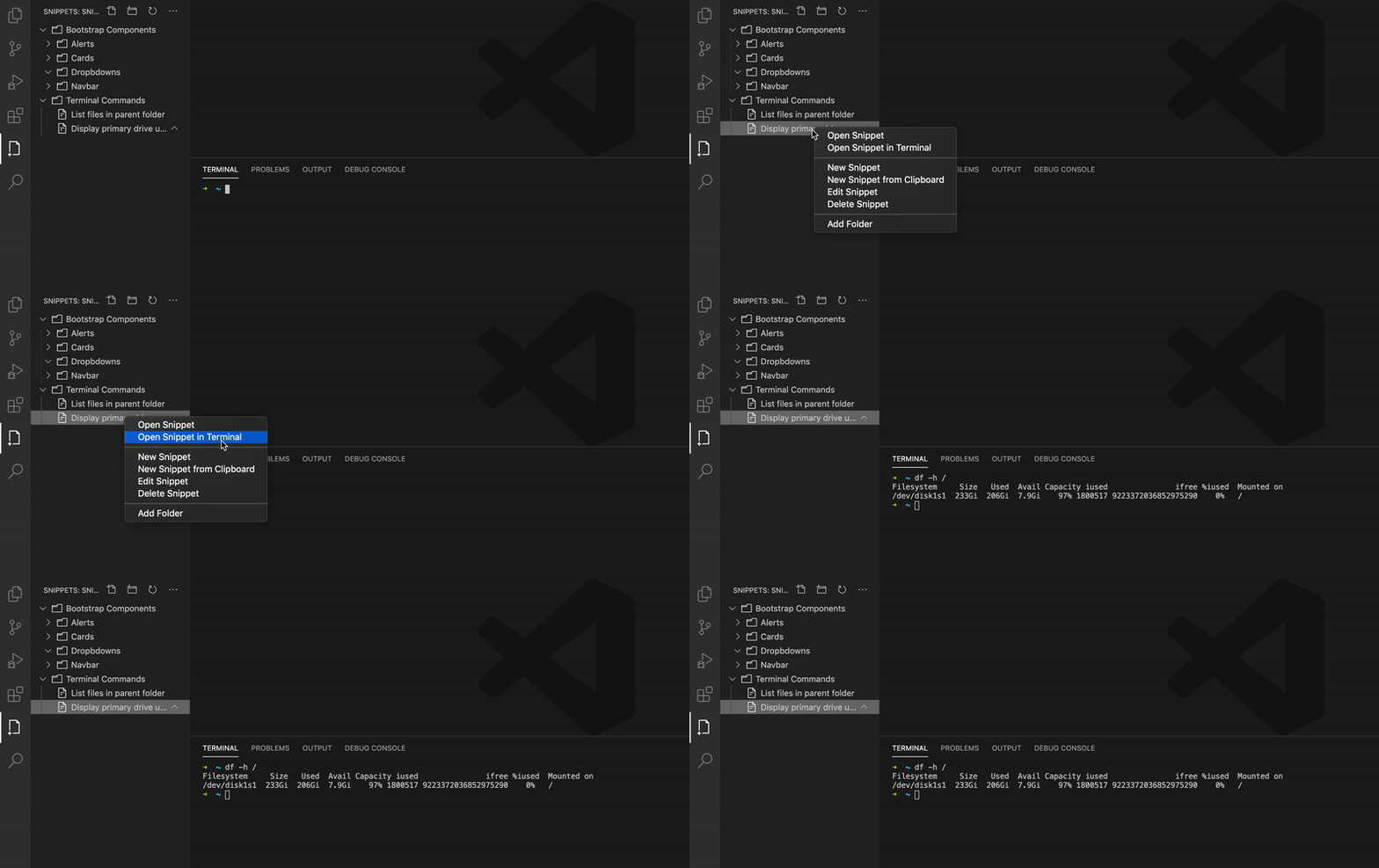
Insert Snippet directly into Terminal
Send a Snippet straight to the integrated terminal instead of the editor — useful for commands you run often.
Enable
snippets.runCommandInTerminalto have the inserted command executed automatically in the terminal.
Search
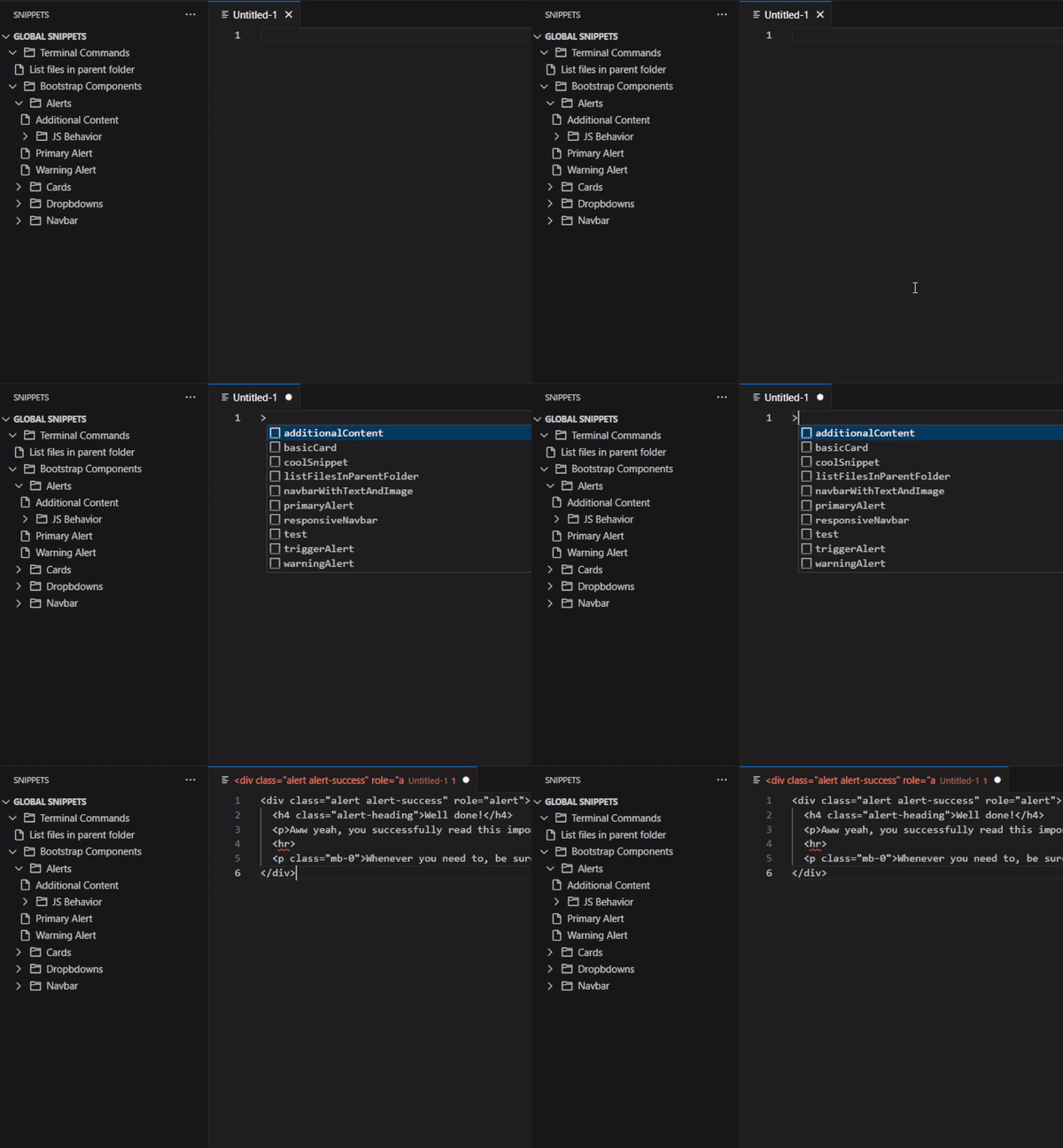
Use IntelliSense to quickly access all your Snippets
Your Snippets appear as IntelliSense suggestions while you type, so you can insert them without leaving the keyboard.
Suggestions are toggled with
snippets.showSuggestionsand triggered by thesnippets.triggerKeycharacter (default>). Labels are camel-cased in suggestions whensnippets.camelizeis enabled. More about IntelliSense here.
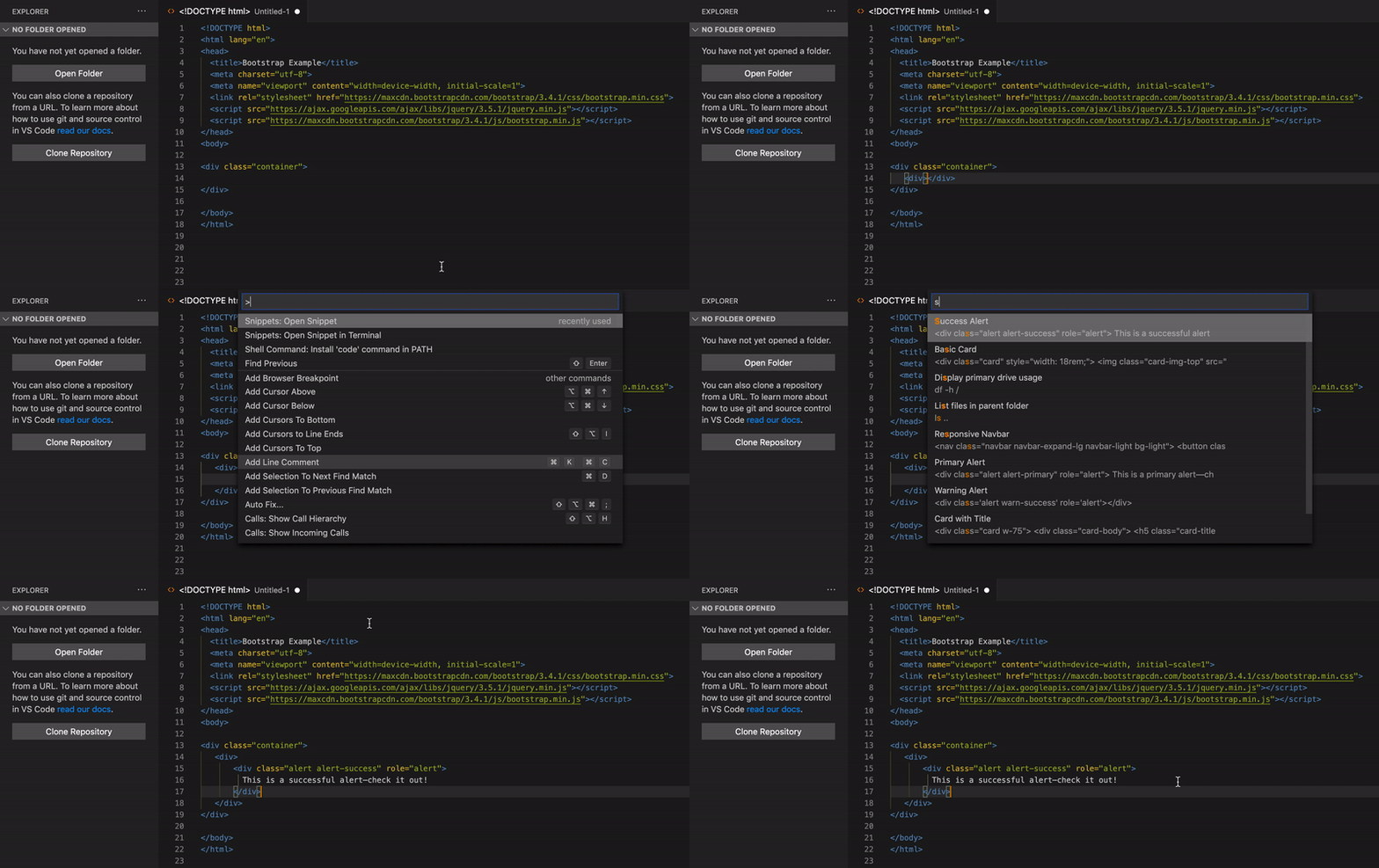
Search for Snippets using Command Palette
Fuzzy-search all your Snippets by name from the Command Palette and open the one you need.
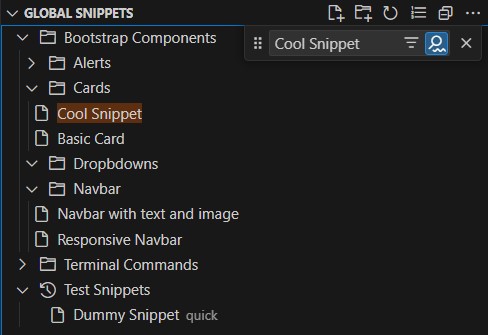
You can also search directly into the Snippets view similarly to the File Explorer.
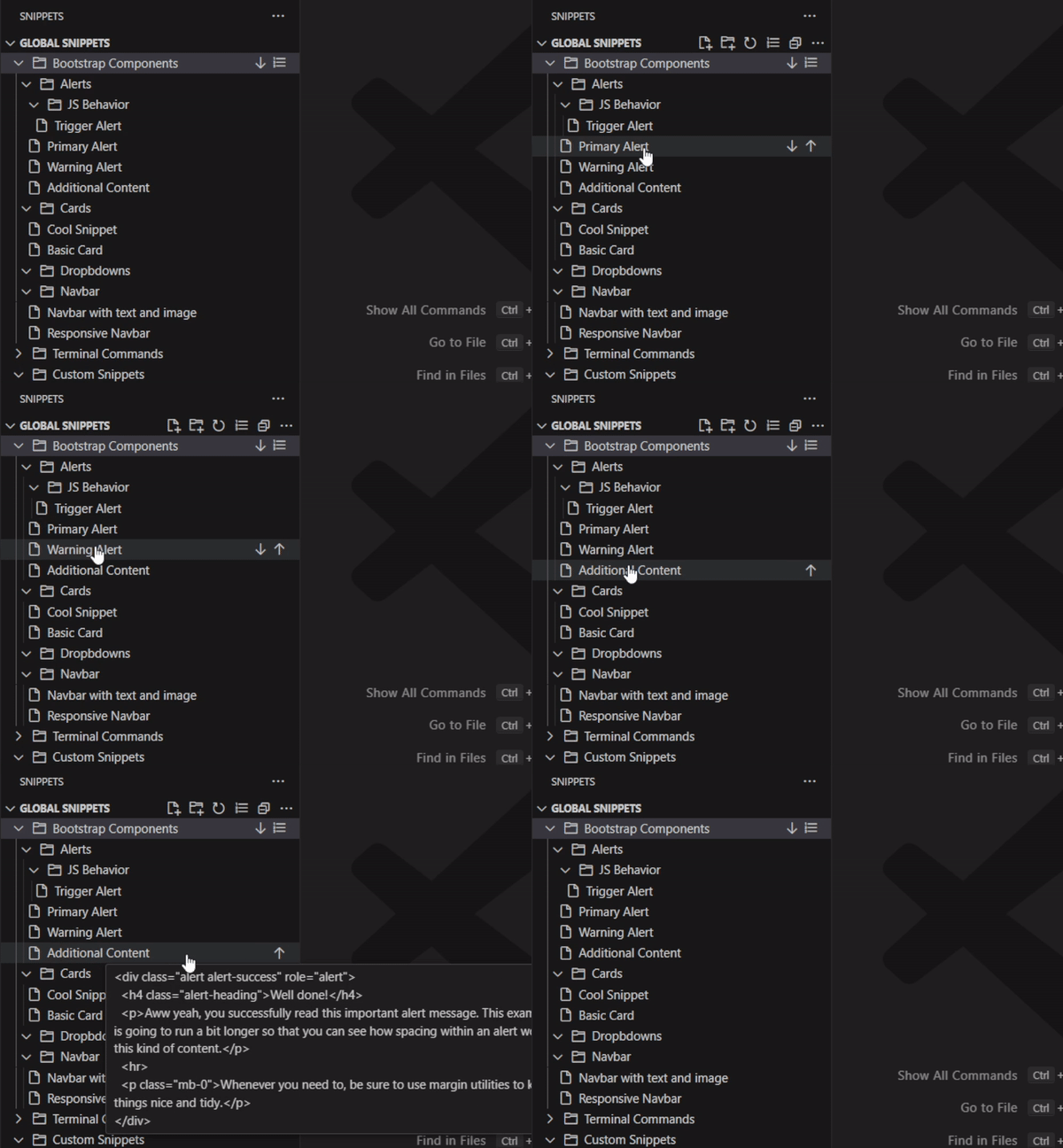
Preview Snippets before insertion
Hover a suggestion to preview the Snippet’s content before inserting it, so you always pick the right one.
Manage
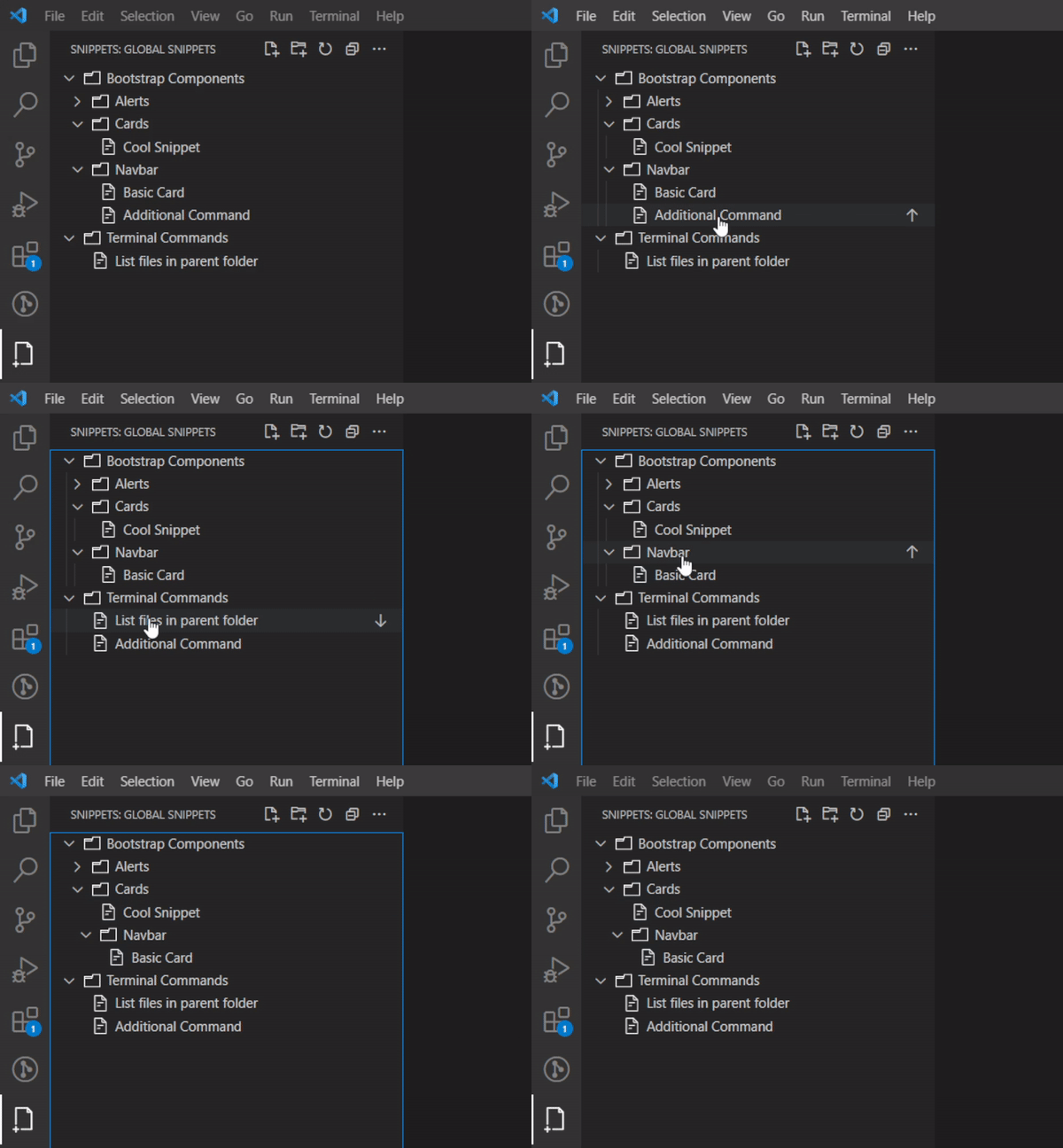
Drag and drop Snippets from one folder to another
Reorganize your library by dragging Snippets and folders into any folder in the tree.
Reorder Snippets using Up and Down actions
Move a Snippet or folder up or down within its parent to arrange items in the exact order you want.
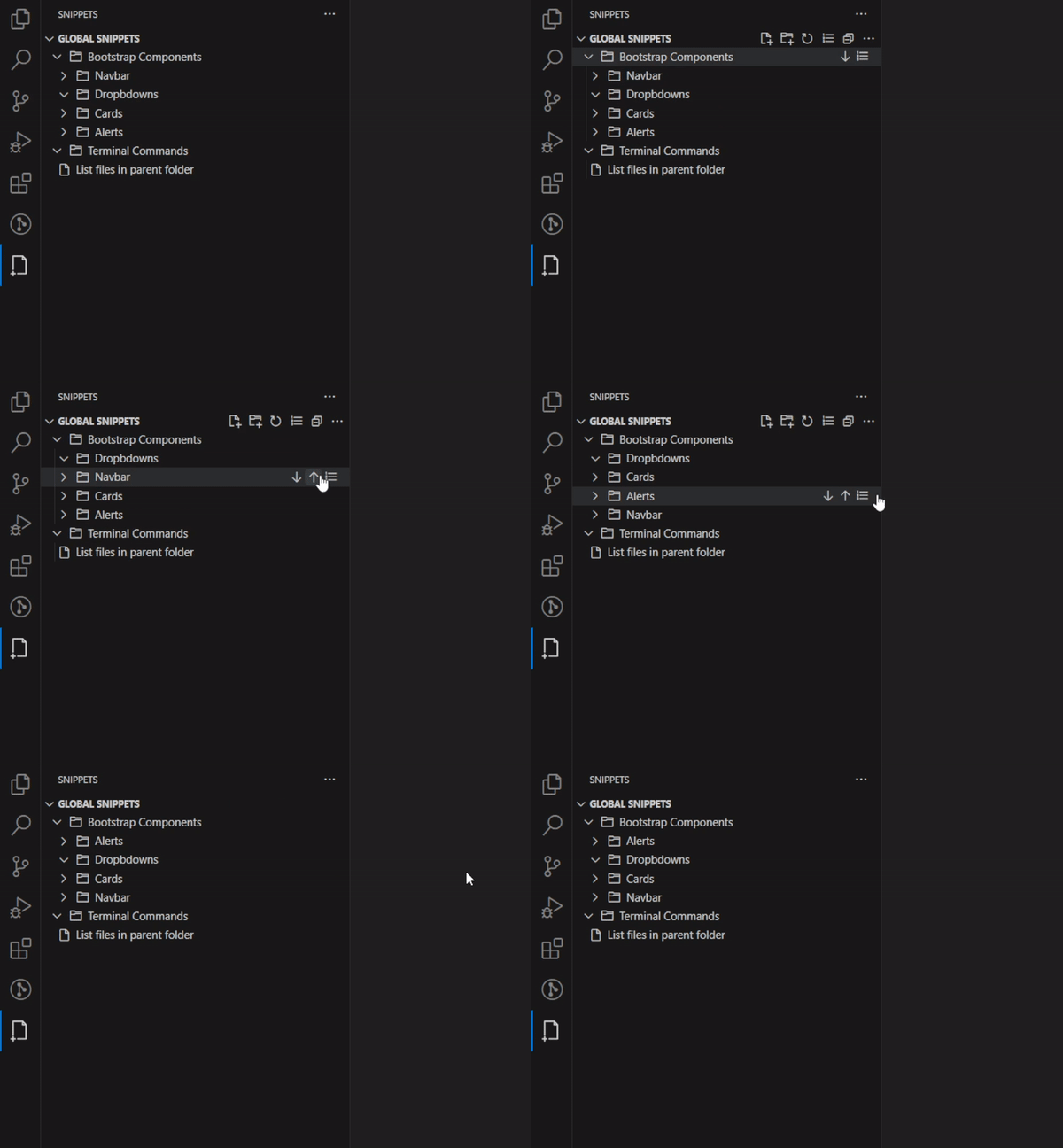
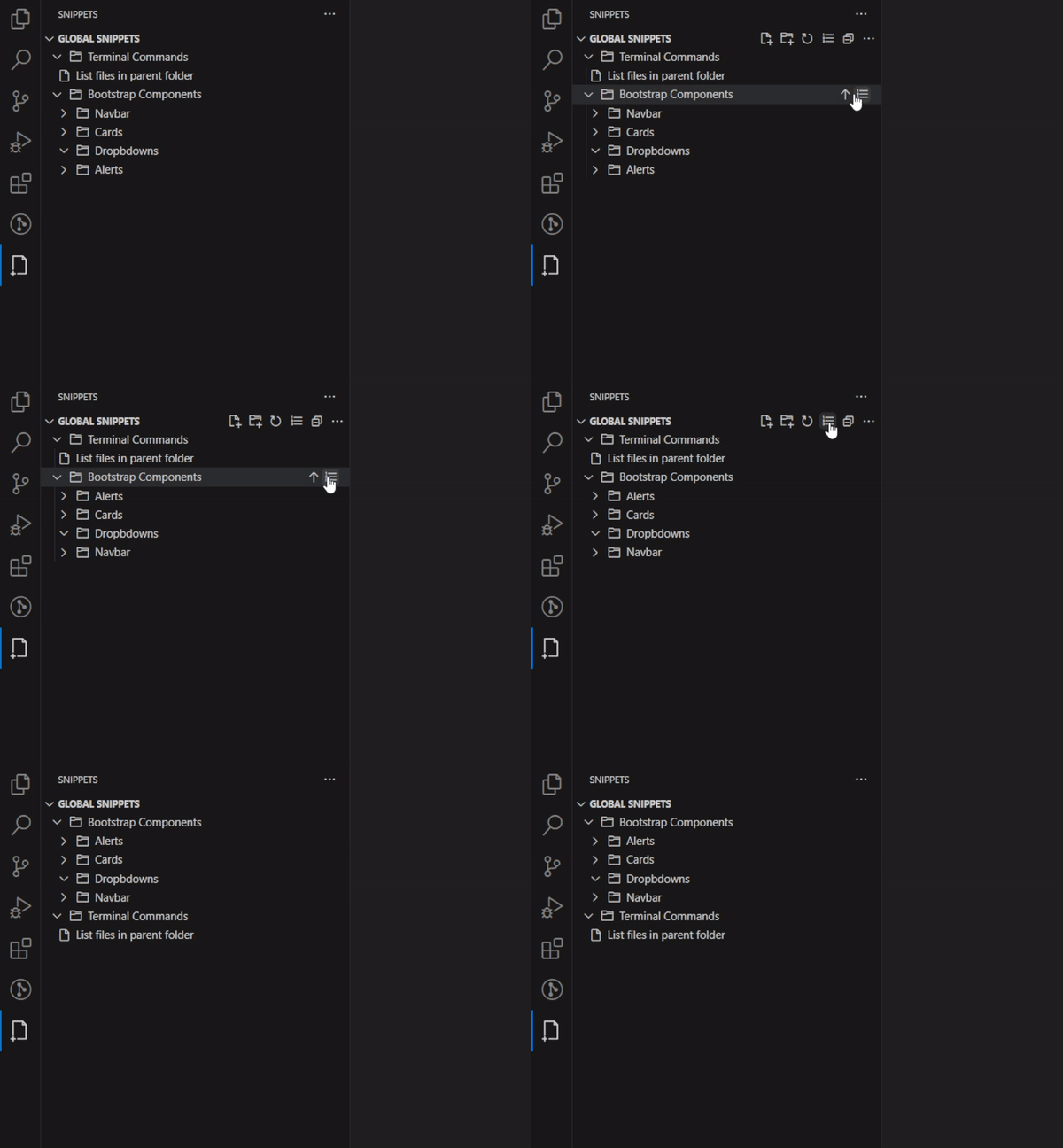
Sort alphabetically a Snippets folder or all your Snippets
Sort a single folder or your whole library alphabetically in one click when you’d rather not order items by hand.
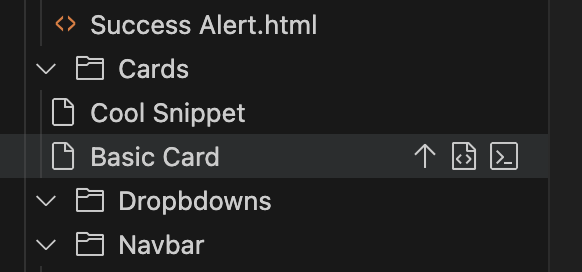
Action Buttons
The extension features enhanced action buttons throughout the interface for improved usability, making it easier to perform common operations with fewer clicks.
When Action Buttons are enabled, they become the primary method for interacting with Snippets in the Tree view, replacing the default click behavior. Set
snippets.openButtonto open a Snippet in the editor/terminal from the action buttons instead of by clicking its name.
Customize
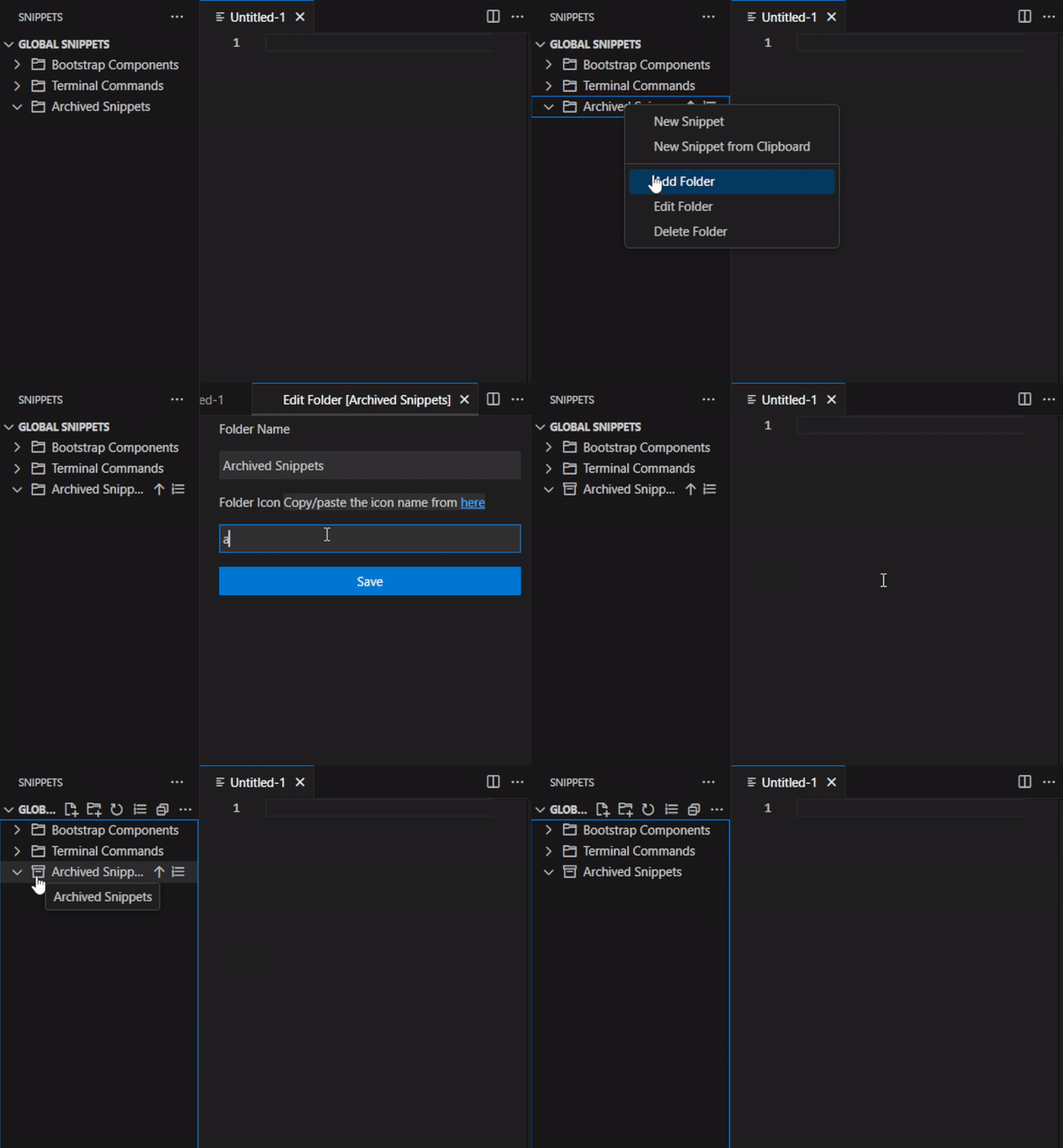
Set icons for your folders
Assign an icon to a folder from the Edit Folder screen to recognize it at a glance in the tree.
Color your folders
Give a folder a color from the Edit Folder screen to make it stand out in the tree. By default the color cascades to the snippets and subfolders nested inside it.
Set
snippets.disableFolderColorCascadeto limit the color to the folder and the items directly inside it instead.
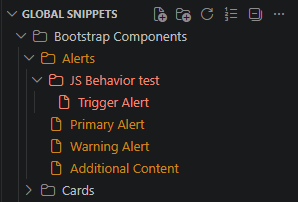
Open folders collapsed by default
Folders can open collapsed so the tree stays compact, expanding one level at a time as you drill in instead of revealing the whole subtree at once.
Enable
snippets.collapseFoldersto turn this on. This change requires a window restart.
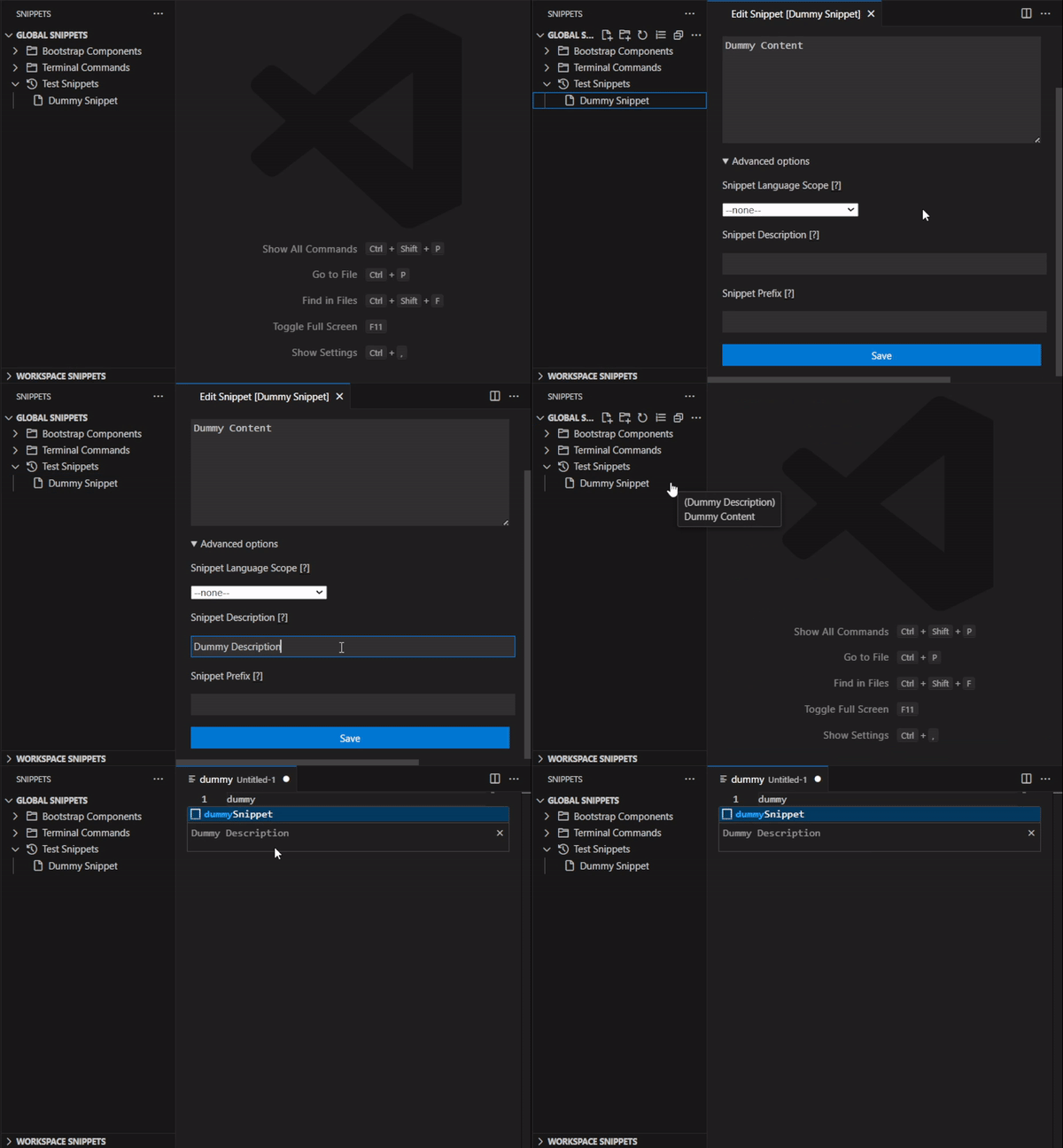
Add a description to your Snippet
Add a free-text description to a Snippet to remind yourself what it does and when to use it.
Descriptions show when hovering on top of a Snippet and in IntelliSense.
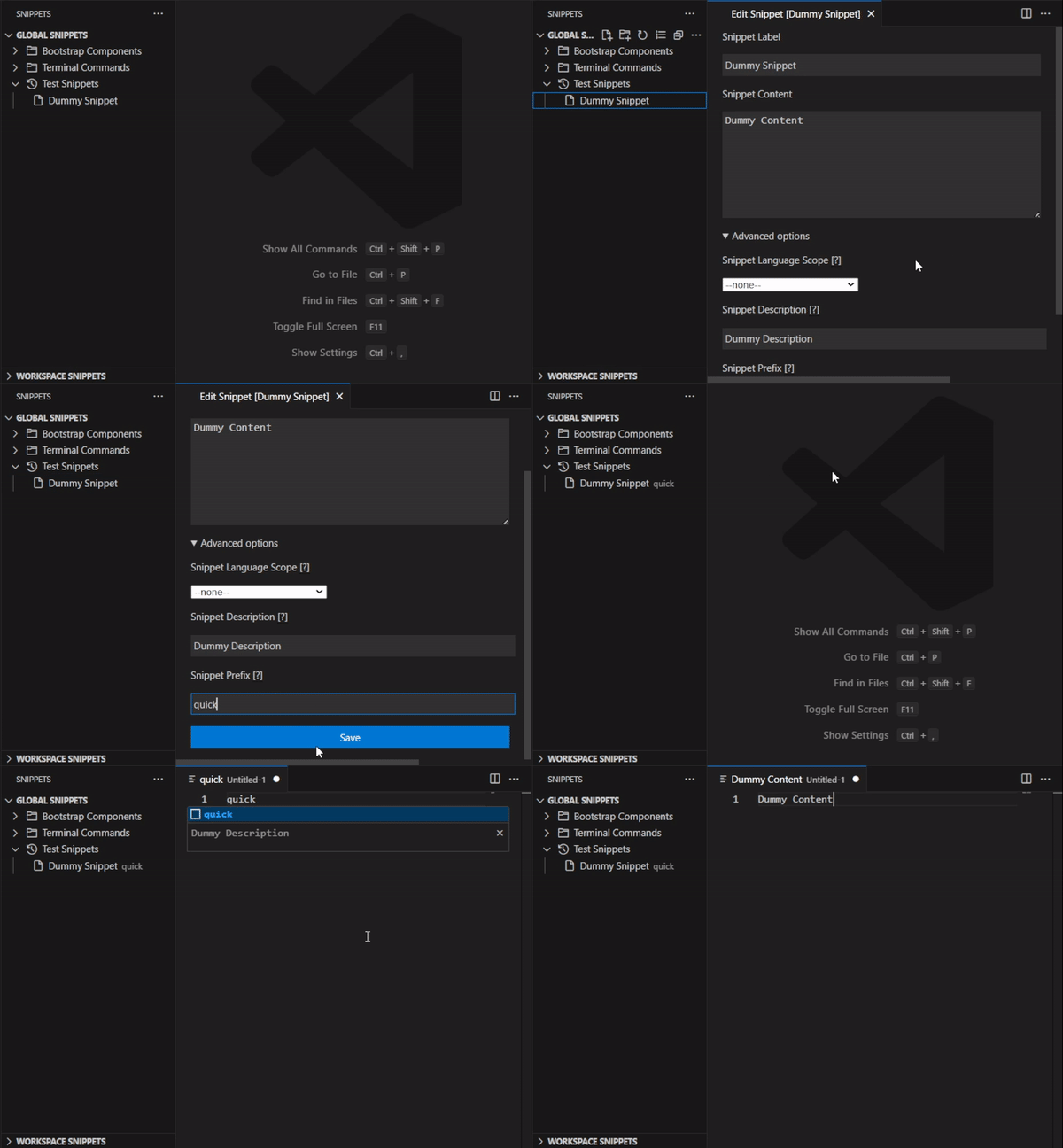
Add a prefix to your Snippet
Give a Snippet a short custom prefix to use as its IntelliSense shortcut instead of its full label.
When displaying Snippets using IntelliSense, the custom prefix will be used instead of the original Snippet label. A prefix is a recommended shortcut for Snippets with long labels.
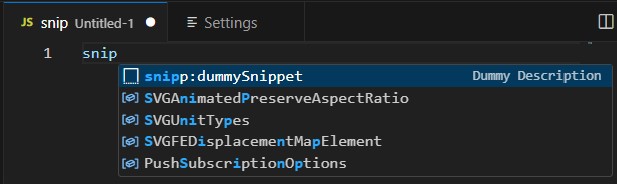
Prefix all your Snippets
Set a single global prefix for every Snippet to distinguish them from other VS Code and Cursor snippets in IntelliSense.
- set a keyword for the setting
snippets.globalPrefix(e.gsnipp) - suggestions coming from your custom Snippets will be prefixed in IntelliSense
An explicit prefix on a single Snippet overrides the Global Prefix setting.
For example, if the global prefix in your settings is set to
foo, and a custom snippet is explicitly prefixed withboo, the latter will be displayed in IntelliSense asboo. All other snippets with no explicit prefix will be displayed asfoo.
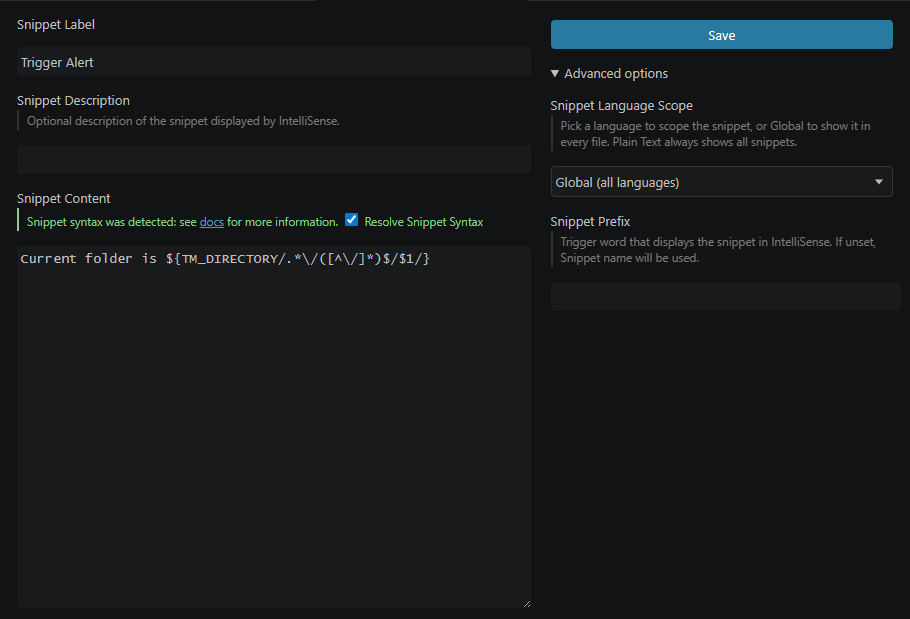
Redesigned snippet editor
The snippet editor uses a two-panel layout: the snippet value on one side and its properties (description, prefix, language, syntax resolving) on the other, making longer snippets easier to edit at a glance.
Enable
snippets.expertModeto always show the advanced options by default when editing a Snippet.
Sync
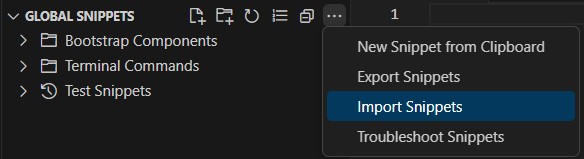
Import and Export Snippets using JSON files
Back up your whole library to a JSON file and import it back on another machine, or share it with teammates.
Two import modes are available: Import data replaces all your global snippets with the imported ones (a backup is kept for rollback), while Import Snippets into New Folder adds the imported snippets under a dedicated
Imported Snippetsfolder without overwriting anything you already have.
Import VS Code Snippets to Cursor or Devin AI (aka Windsurf)
You can import your existing VS Code snippets directly to Cursor or Devin AI (aka Windsurf), combining the best snippets you collected for both editors.
Sync Snippets between multiple devices
Starting with version 2.0 and up, Snippets supports backup using the VS Code Settings Sync feature. Your snippets are saved alongside your VS Code data no matter your operating system.
⚠ Experimental feature: feel free to file a bug as this is still an experimental change.
Check the docs to know more about the Settings Sync feature and how to use it.
Sync your Snippets with a Version Control System
A large number of users utilize a VCS (e.g Git) and may need to associate a set of snippets with a specific project (e.g sharing project-specific snippets with team members). This can be achieved by enabling the snippets.useWorkspaceFolder setting. Once this option is enabled, the extension will read/write snippets to/from the .vscode/snippets.json file if it’s available (the extension will prompt you to create the file the first time you enable this option).
Note: Workspace snippets are excluded from synchronization via Settings Sync. You will be responsible for backing up the
.vscode/snippets.jsonfile using your favorite VCS.
Boost
Bind Snippets to Programming Languages
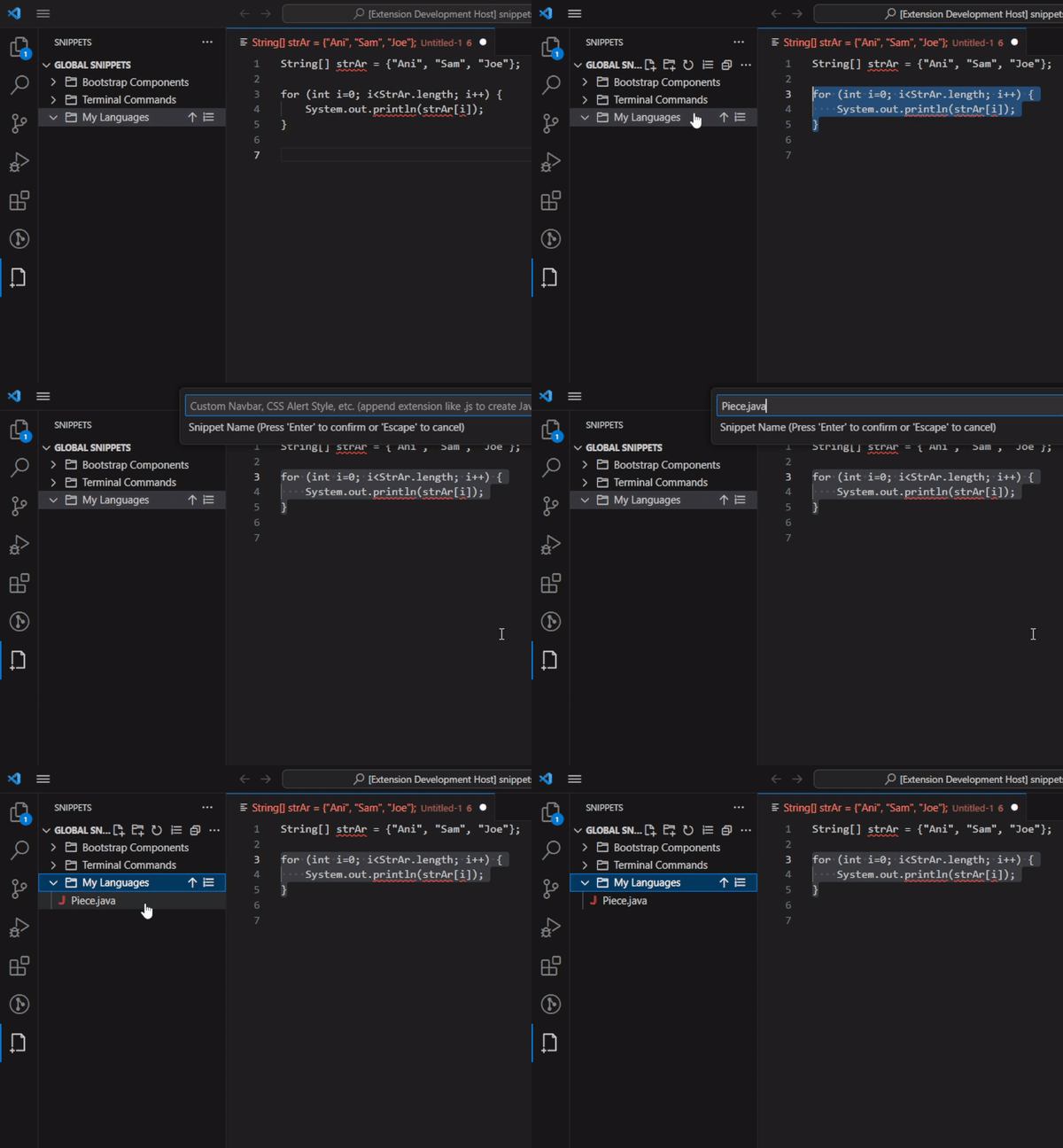
Snippets created from a language-specific editor/file keep a reference to the programming language used, and are suggested only in editors/files of the same programming language.
A Snippet bound to a programming language gets an icon for that particular language natively.
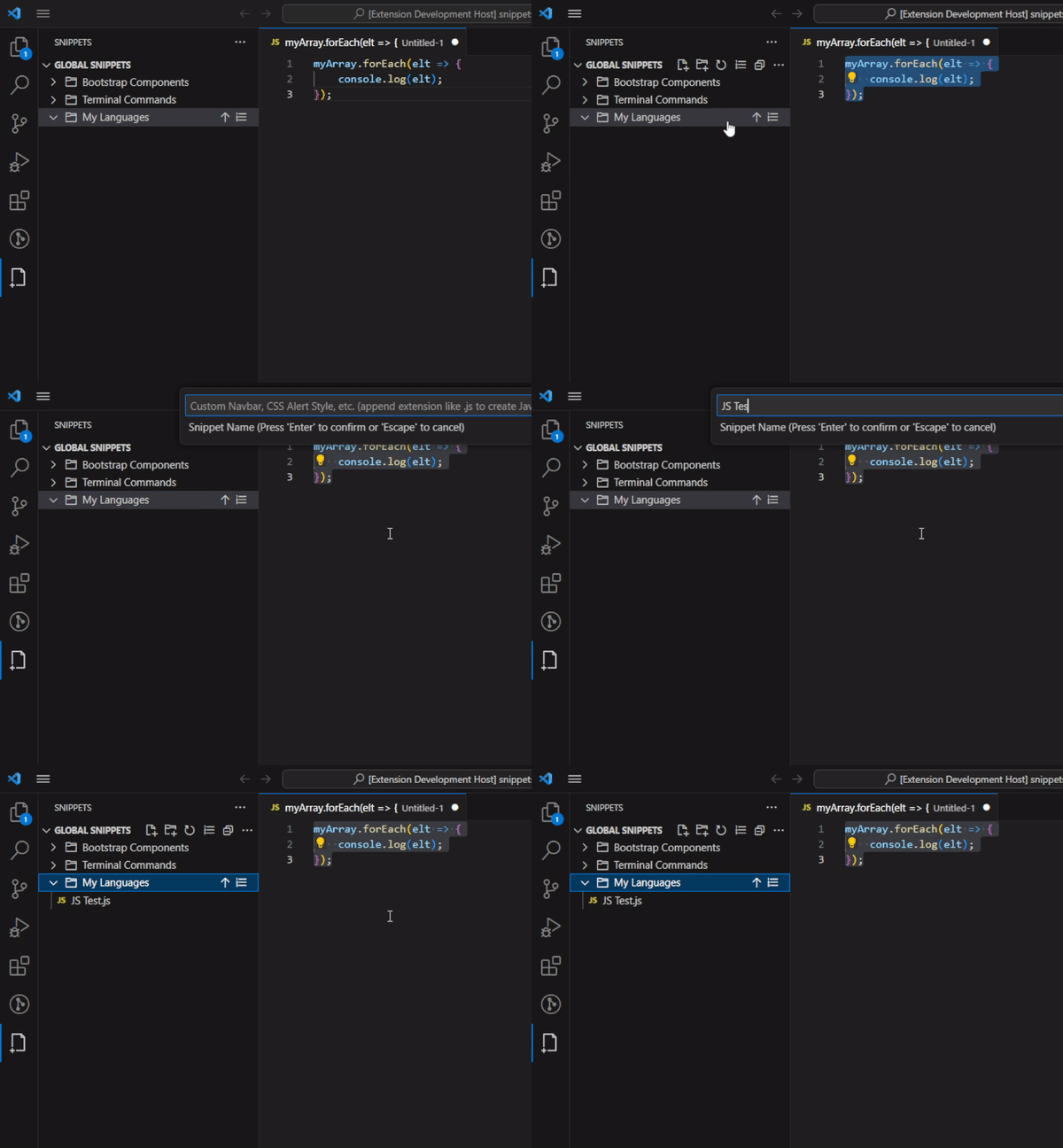
You can explicitly set a programming language by appending the language file extension to the Snippet name at the creation prompt.
Global Snippets
Snippets saved without a language scope are global: they appear in IntelliSense in every file, regardless of the active language. Pick Global (all languages) from the language picker on a Snippet to make it available everywhere.
Plain Text files always show every Snippet, global or language-scoped, since they are the default language for new untitled files.
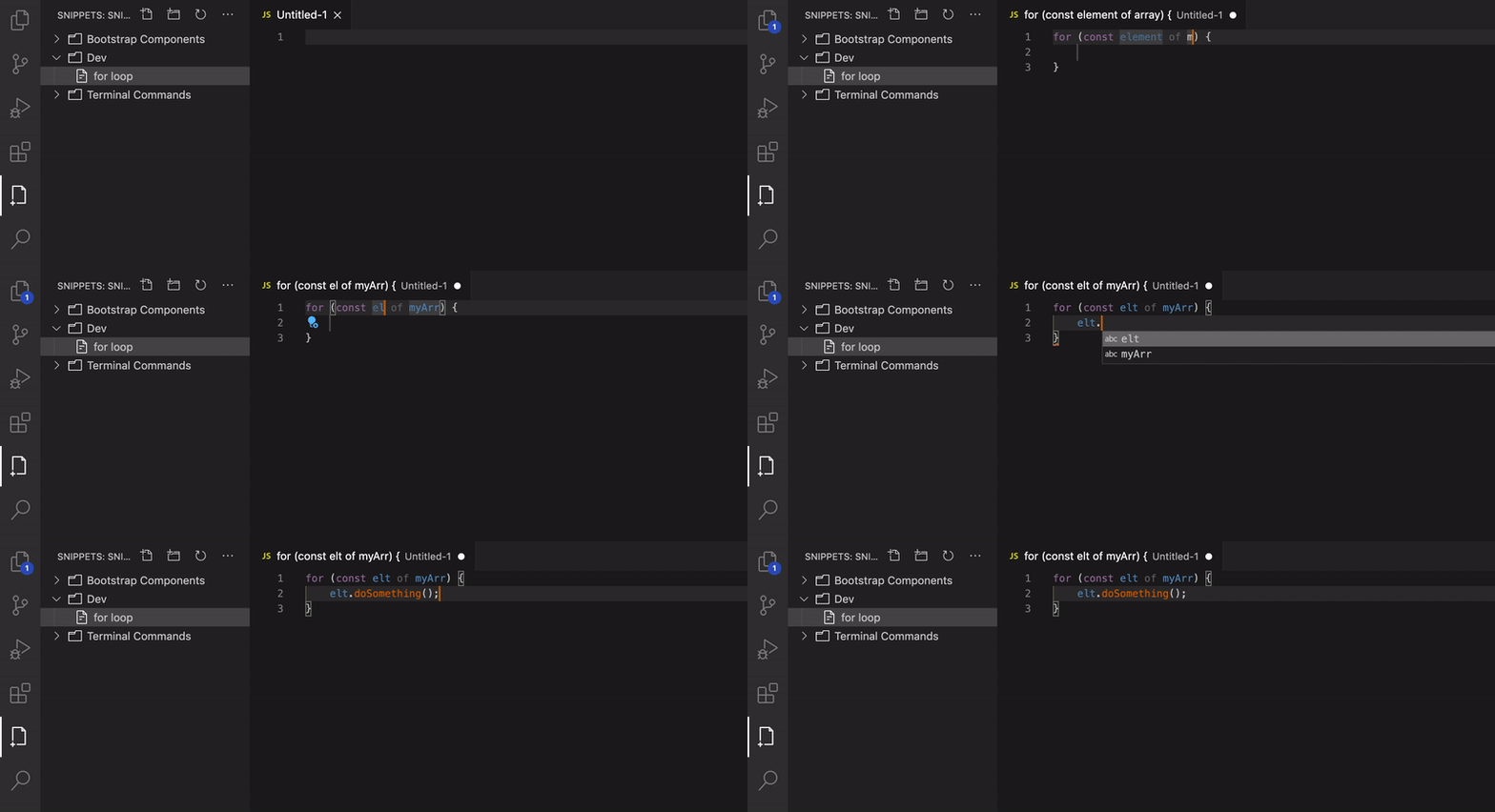
Resolve Snippet Syntax
Snippets can contain VS Code snippet syntax (tab stops, placeholders, variables) that is resolved on insertion instead of being pasted literally.
Learn more about the Snippet syntax here.
The Resolve Snippet Syntax option is disabled by default for new Snippets — you may need to edit the Snippet to enable it.
AI Integration
Seamlessly integrate your snippets with AI assistants in VS Code and Cursor:
GitHub Copilot Chat
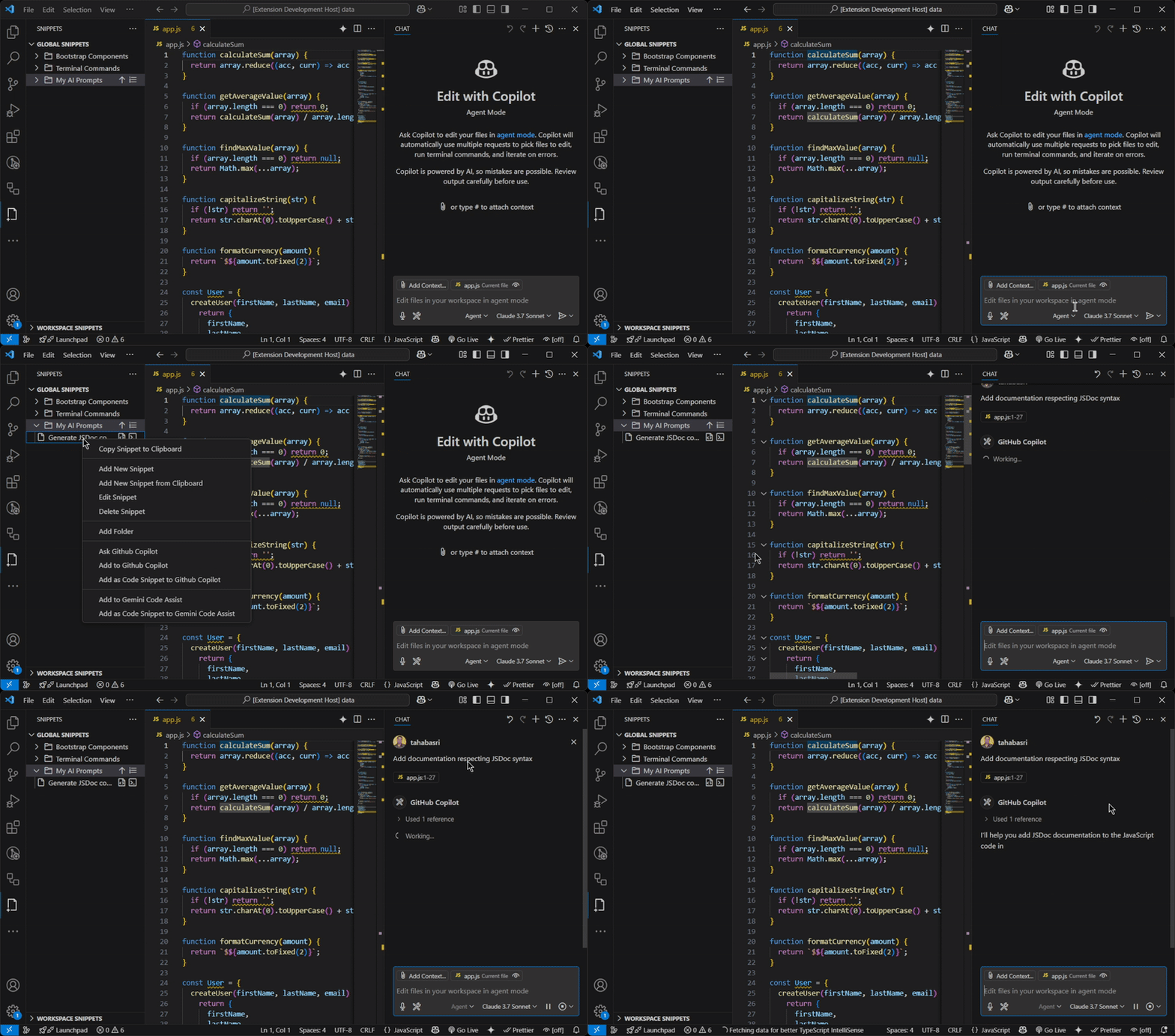
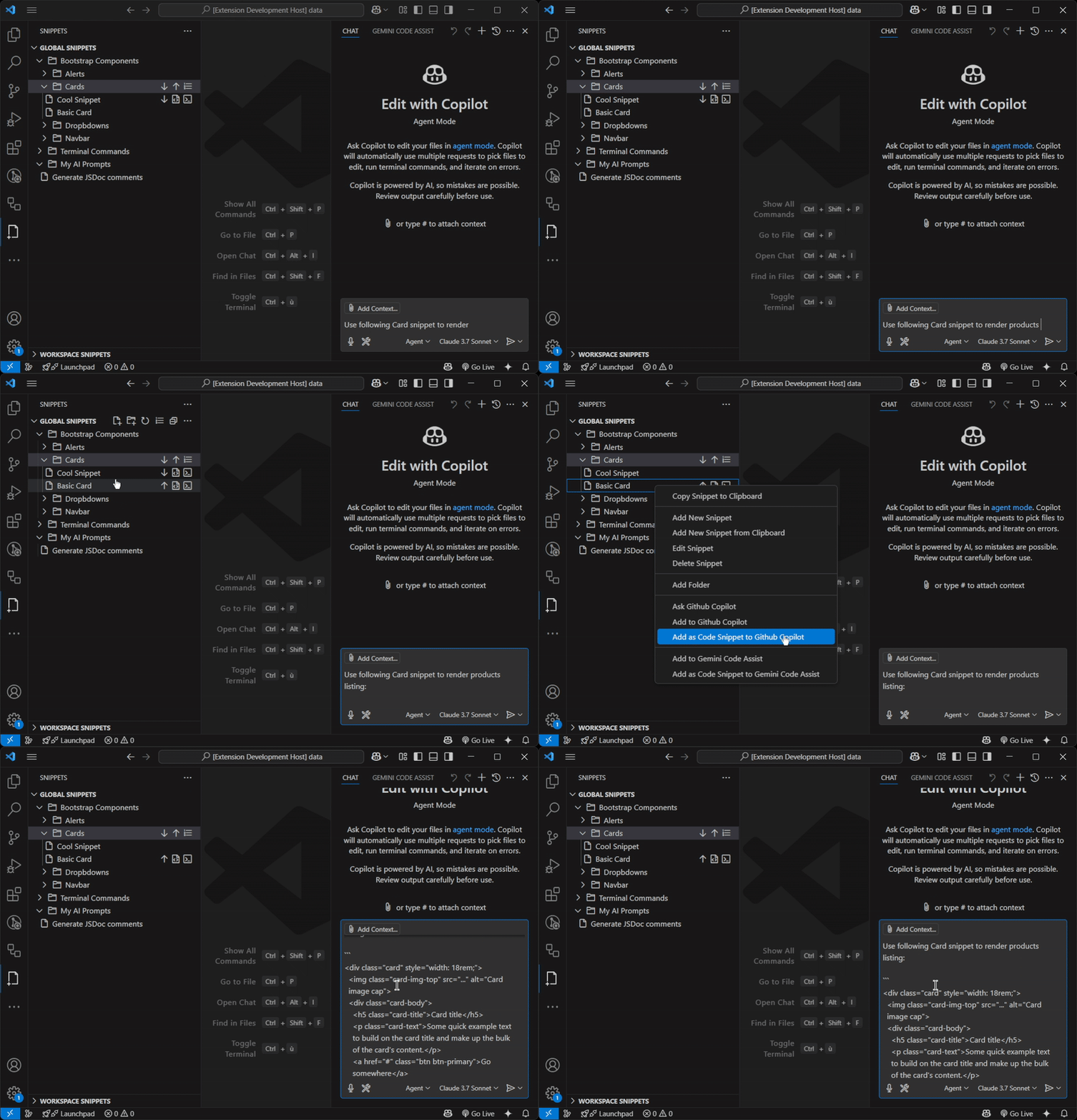
Use your snippets directly with GitHub Copilot Chat for enhanced productivity and context-aware code generation.
- Save prompts as snippets and use them directly in Github Copilot.
- Use code snippets directly in Github Copilot.
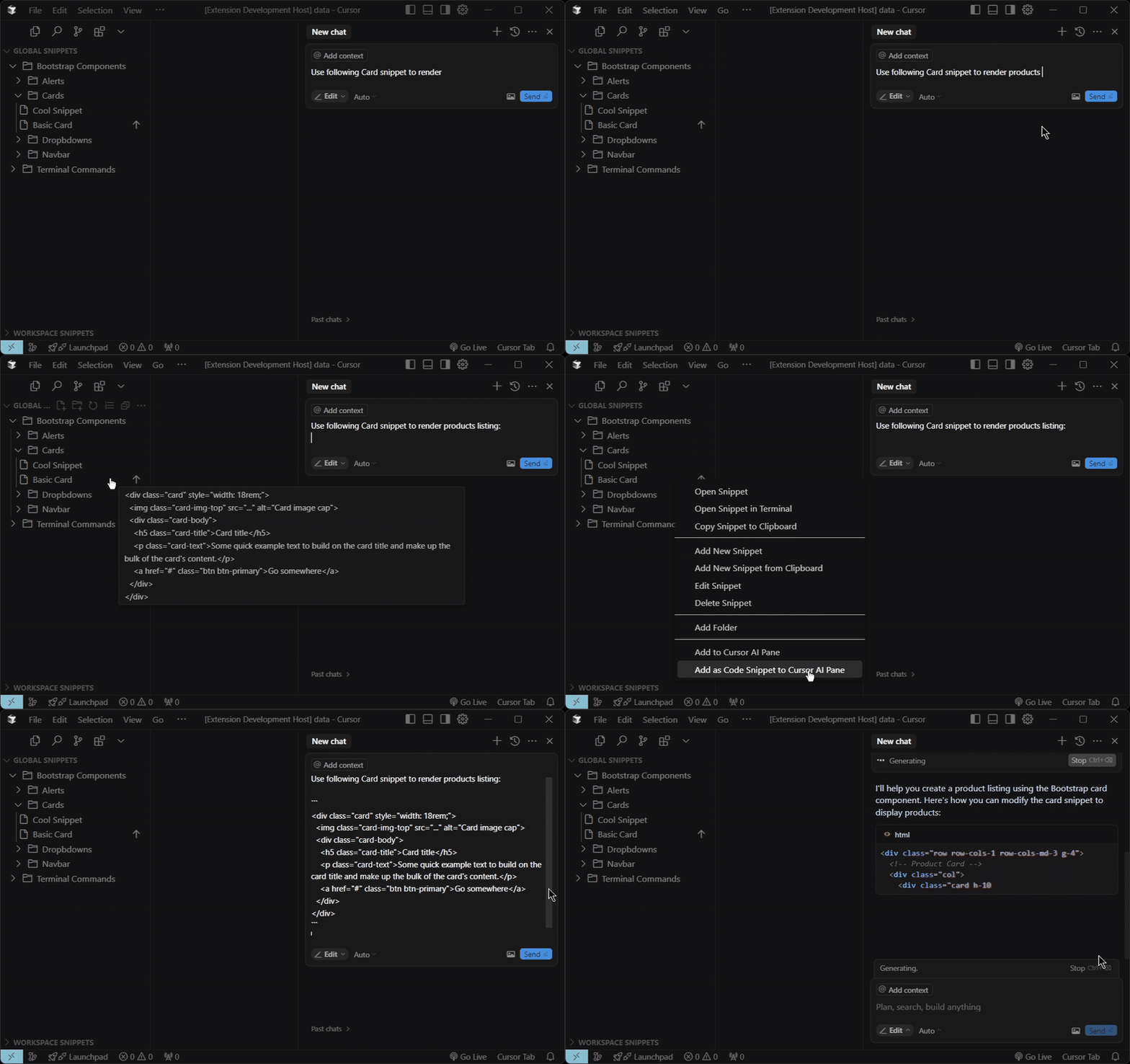
Cursor Pane
Integrate with Cursor’s AI capabilities to get intelligent suggestions based on your snippets library.
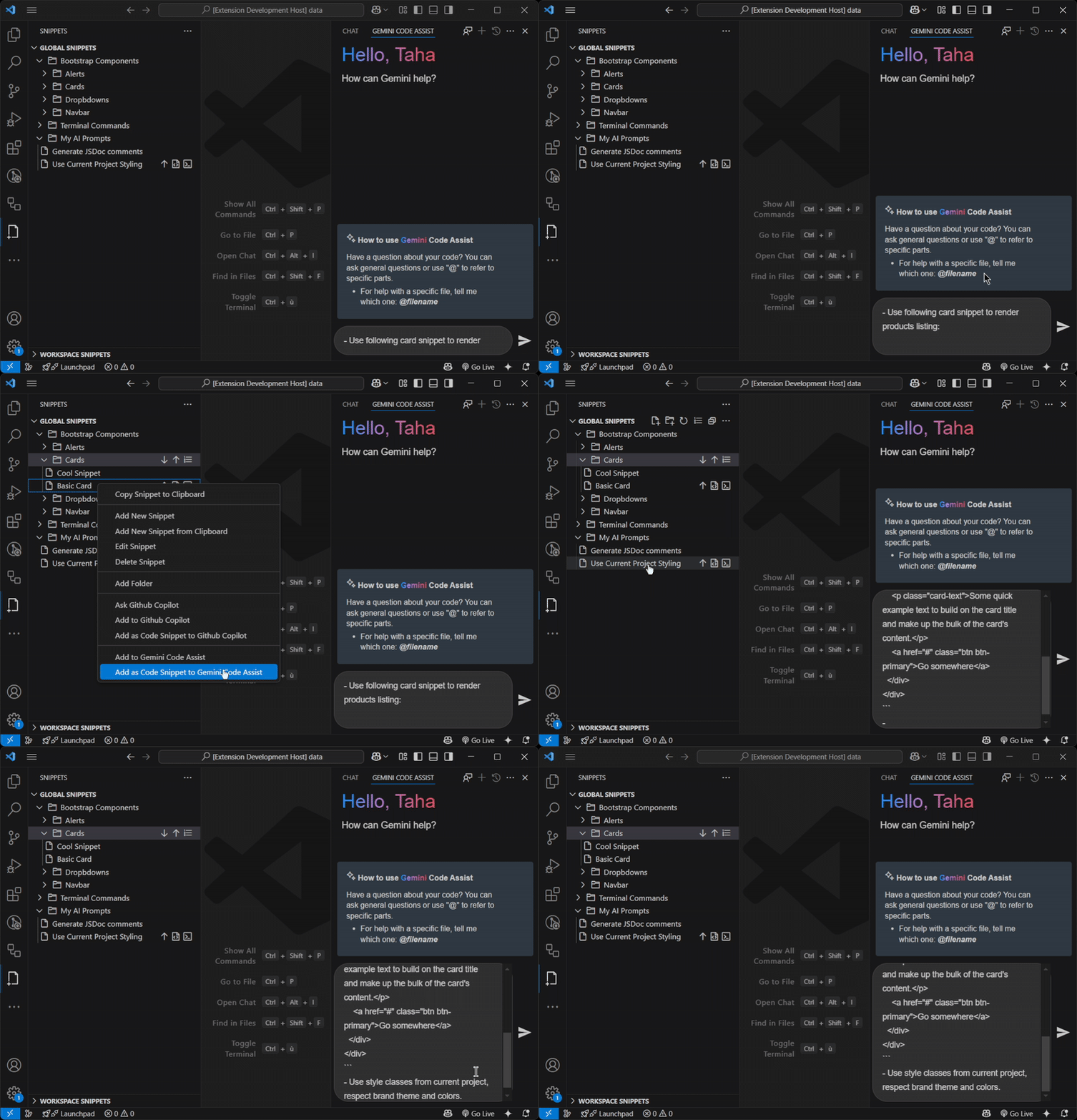
Gemini Code Assist
Leverage Google’s Gemini Code Assist alongside your snippets for more powerful code completion and generation.
Enjoy!
Settings
All settings are exposed under the Snippets section of VS Code Settings (Ctrl/Cmd + ,). Settings noted as requiring a window restart take effect only after reloading the window.
| Setting | Default | Description |
|---|---|---|
snippets.useWorkspaceFolder |
false |
Save snippets to a .vscode/snippets.json file in the current workspace instead of (or in addition to) the global store. See Sync with a VCS. |
snippets.showSuggestions |
true |
Show Snippets as IntelliSense suggestions while typing. |
snippets.triggerKey |
> |
Single character typed to trigger Snippets suggestions. Requires a window restart. |
snippets.globalPrefix |
(empty) | Default prefix applied to Snippets that have no explicit prefix; they are suggested as prefix:snippetName (max 5 characters). Requires a window restart. |
snippets.confirmBeforeDeletion |
true |
Ask for confirmation before deleting a Snippet or folder. |
snippets.runCommandInTerminal |
false |
Automatically execute a Snippet in the terminal when it is opened there. |
snippets.camelize |
true |
Camel-case Snippet labels in suggestions (awesome-and-cool snippet → awesomeAndCoolSnippet). |
snippets.expertMode |
false |
Show the advanced options by default when editing a Snippet. |
snippets.openButton |
false |
Use the action buttons to open a Snippet in the editor/terminal, disabling open-on-name-click. |
snippets.collapseFolders |
false |
Open folders collapsed, expanding one level at a time. Requires a window restart. |
snippets.disableFolderColorCascade |
false |
Limit a folder’s color to the folder and the items directly inside it, instead of cascading to all nested descendants. |
snippets.snippetsLocationis deprecated. The default storage is now VS CodeglobalState(which syncs across machines); usesnippets.useWorkspaceFolderfor file-based, project-scoped storage instead.
FAQ
Q: Is there a limit on the number of snippets/folders I can create?
A: There is no limit; your disk space is the only limitation.
Q: I’m feeling overwhelmed by multiple snippets. How can I better organize them?
A: Check the Manage section for available organizational features including folders, drag-and-drop, reordering, and alphabetical sorting.
Q: Clicking “Request to Initialize File” does nothing. What should I do?
A: If you’re attempting to initialize the snippets file for a new workspace and nothing happens, ensure that the path to your current folder open in VS Code has the correct file permissions.
Q: Can I specify the cursor position so that, when the snippet is added, the cursor is moved to a particular position?
A: Yes, you can enable Resolve Snippet Syntax for a particular snippet and use VS Code Tab Stops.
Q: How do I use snippets with AI assistants?
A: The extension integrates with GitHub Copilot Chat, Cursor Pane, and Gemini Code Assist. Check the AI Integration section for details.
Q: I’m switching to Cursor/Devin AI (aka Windsurf). How do I import my existing VS Code snippets?
A: You can import your VS Code snippets directly to Cursor/Devin AI (aka Windsurf) using the import feature. See the Import VS Code Snippets to Cursor or Devin AI section.
Known Issues
Troubleshoot Snippets
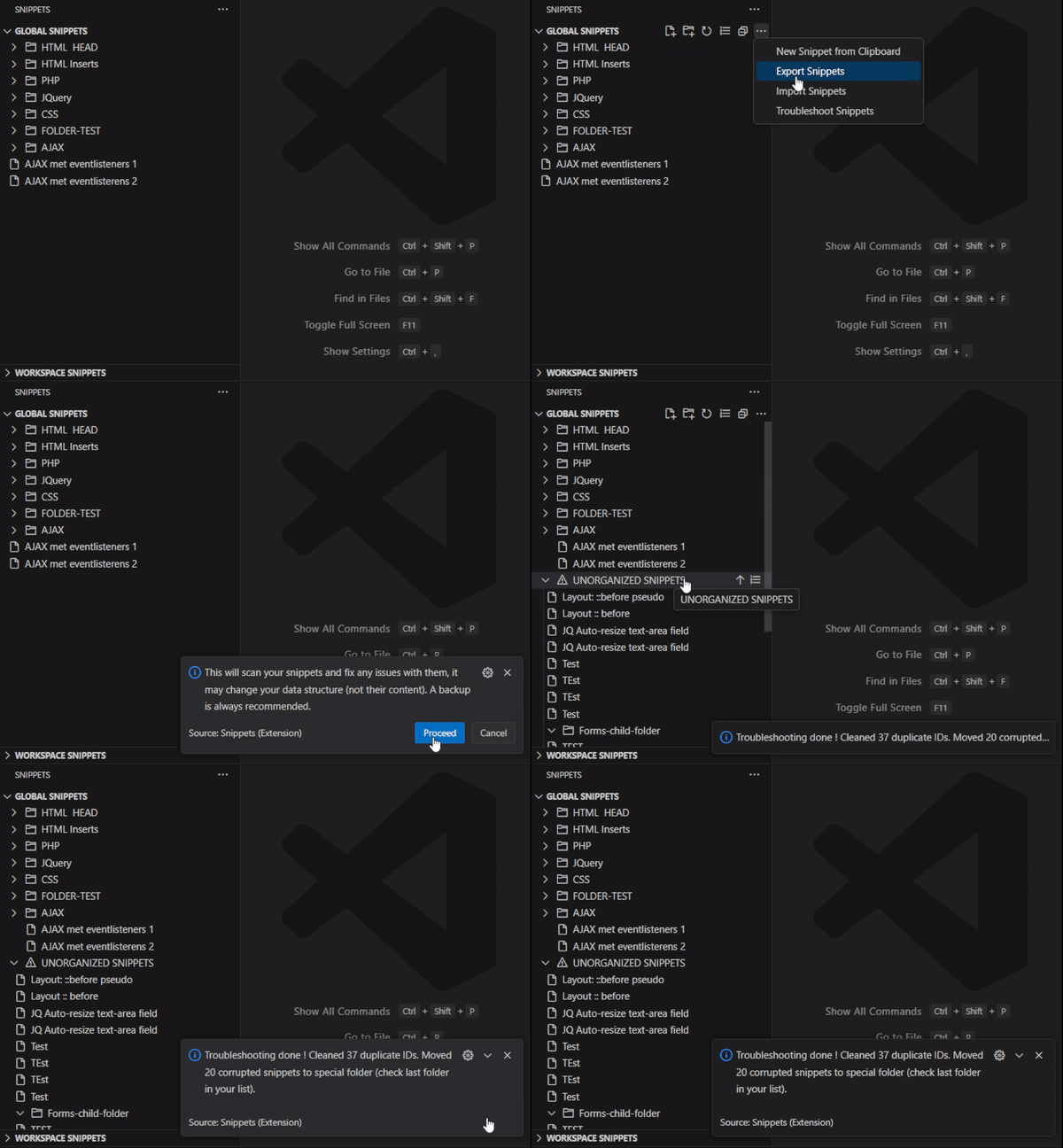
- The new “Troubleshoot Snippets” option helps fix common issues, including:
- Old snippets not appearing.
- Moving snippets not working.
- New snippets disappearing.
These issues often arise when two conflicting features, moving snippets and syncing them simultaneously, are in use. Fortunately, no snippets should be permanently lost. They are all stored locally, but inconsistencies in the database can make the snippets temporarily invisible.
Files Permissions on Windows
You may encounter some inconsistencies when dealing with snippets on Windows. The first thing to check is whether all related VS Code files are accessible and if any folder permissions are affecting accessibility.
Release Notes
Check the CHANGELOG for full release notes.